 Zoho CRM Implementation
 Zoho One Consulting
 Zoho Books Setup
 Zoho Analytics & BI
 Data Migration Services
 Zoho Desk Automation
 Zoho Creator Development
 Zoho Automation Services
 Zoho Widget Development
 Zoho Extension Development
 Deluge Development
 Zoho Integration Services
 Zoho API Integration
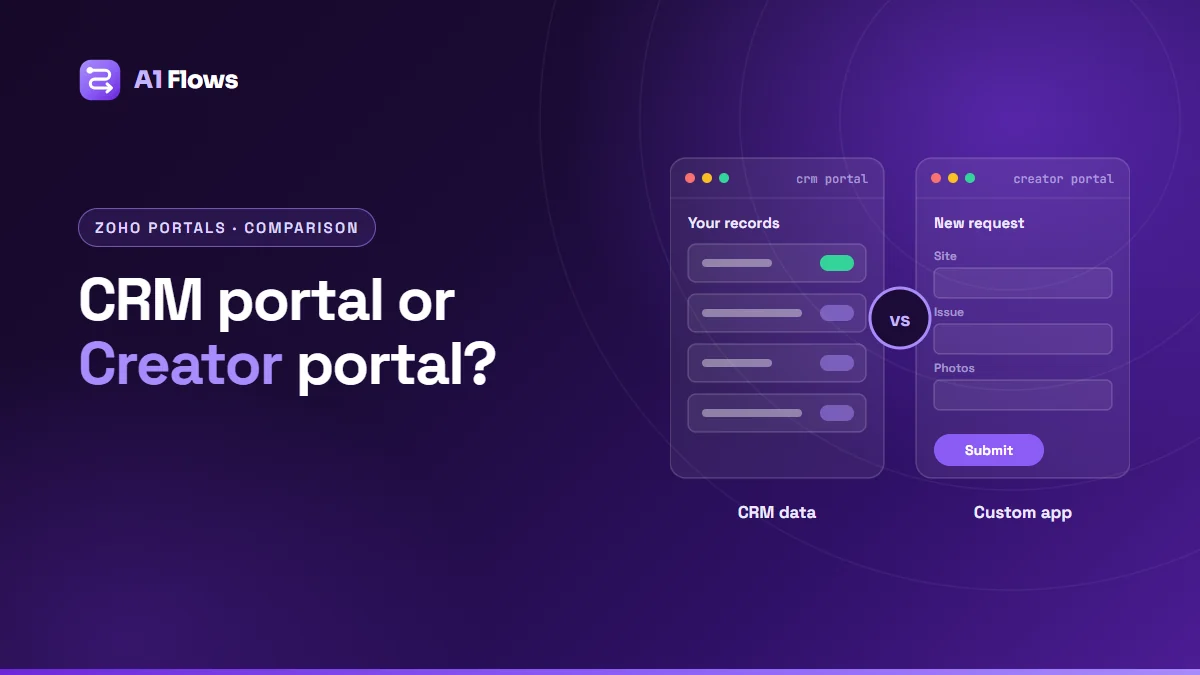
Zoho offers two ways to give customers, partners or vendors their own login: Zoho CRM Portals and Zoho Creator portals. A CRM portal opens selected CRM records to outside users – their quotes, invoices, cases or projects – with permissions you set. A Creator portal sits on top of a custom application you build, so the portal can do whatever the app does.
In short: choose a CRM portal when the data customers need already lives in Zoho CRM and they mainly need to view and update it. Choose a Creator portal when you need a custom process, custom screens, or data that does not belong in your CRM.
In this guide
- What is a customer portal?
- What a Zoho CRM portal is
- What a Zoho Creator portal is
- Side-by-side comparison
- Which one fits which use case
- Setting up a CRM portal, step by step
- Common mistakes
- Frequently asked questions
What is a customer portal?
A portal is a secure, branded login area for people outside your organisation. Instead of emailing your team for a status update, a copy of an invoice or a form to fill in, they sign in and help themselves – seeing only the records you allow.
Portals are used for customers checking orders and invoices, partners registering deals, vendors updating purchase orders, students tracking applications, and clients submitting service requests. The questions that decide which Zoho portal fits are where the data lives and how custom the process is.
What a Zoho CRM portal is
Zoho CRM Portals lets you give external users controlled access to CRM modules. Portal users can view, create, edit and clone records they have access to, and add notes. You decide which modules, layouts, records and fields each group of users can reach. Zoho’s CRM Portals documentation covers the details.
Key points from Zoho’s documentation:
- User groups define who the portal users are and what they can do. You can configure up to five. A default “Client Portal” group on the Contacts module is created automatically and cannot be deleted.
- Per-module permissions: View, Create, Edit, Delete, and Edit (Shared) for records created by CRM users.
- Record visibility through lookups (a contact sees their own account’s deals) or criteria.
- Field permissions: choose which fields users see and which are read-only.
- Inventory documents: portal users can view quotes, sales orders and invoices and export them to PDF.
- Pricing: Zoho states the first 1,000 portal users across groups are free, with tiered per-user pricing beyond that. Check Zoho’s current pricing before relying on these figures.
Limitations worth knowing: portal users cannot own records (what they create is assigned to the CRM user who invited them), and once a portal is configured it cannot be deleted.
What a Zoho Creator portal is
Zoho Creator is Zoho’s low-code platform for building custom business applications. A Creator portal gives external users a login to one of those applications, with permissions that control which forms, reports and pages they can use and which records they see – typically only their own.
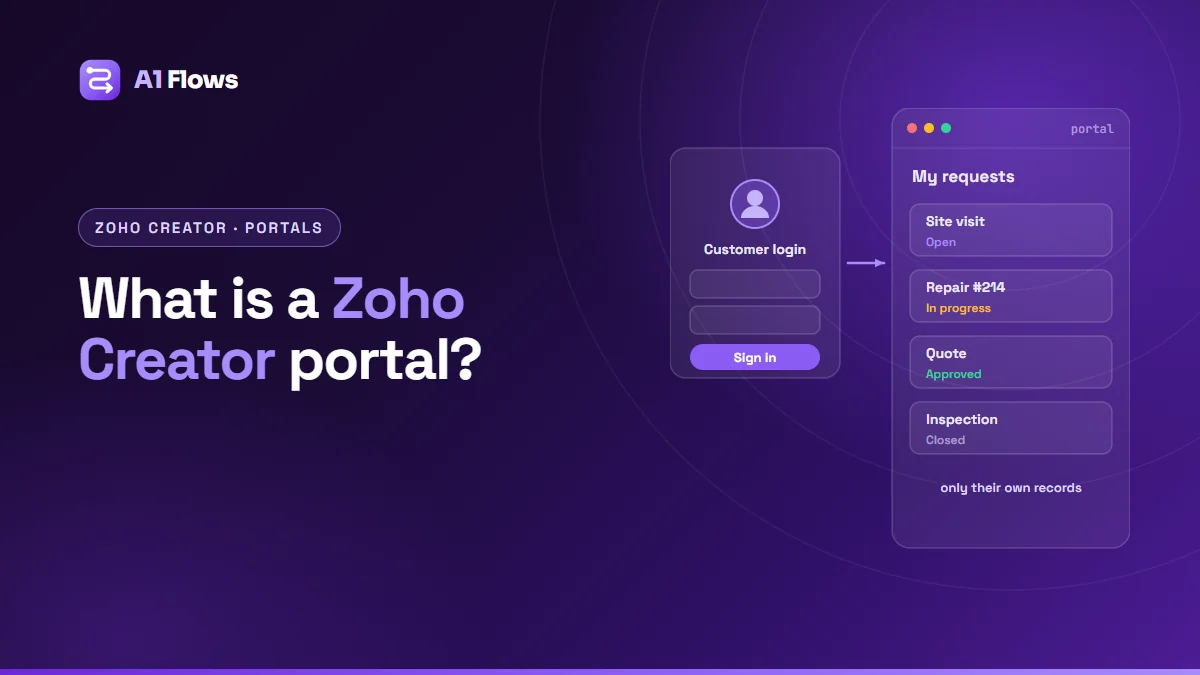
Because the portal sits on a custom app, it can follow any process you can build: multi-step request forms, file and photo uploads, approvals, status tracking, calculations and integrations with other systems. Portal user allowances depend on your Creator plan. Our article What is a Zoho Creator portal? explains how one is put together.
Side-by-side comparison
| Zoho CRM portal | Zoho Creator portal | |
|---|---|---|
| Data source | Your Zoho CRM modules | A custom Creator application |
| Best for | Viewing and updating CRM records | Custom processes and screens |
| Build effort | Configuration | Application development |
| Customisation | Layouts, fields, permissions | Forms, pages, logic, workflows |
| Process logic | CRM workflows behind the scenes | Anything Deluge can express |
| Mobile | Web portal | Web, plus Creator’s mobile apps |
| Data for your team | Already in CRM | In Creator, synced to CRM if needed |
Which one fits which use case
Choose a CRM portal when…
- Customers want to see their quotes and invoices. The documents already live in CRM’s inventory modules.
- Partners register deals. A partner group with create access to Deals feeds your pipeline directly.
- Clients track cases or projects stored in CRM. A lookup from the contact to their records is enough.
- You want it running quickly without building an application.
Choose a Creator portal when…
- The process is specific to your business – inspections, permit applications, service requests with photos, multi-stage onboarding.
- The data does not belong in CRM – operational records, equipment, compliance documents.
- You need custom screens: dashboards, calculators, step-by-step wizards.
- Field users need a mobile app that works with patchy signal.
Using both
Many businesses use both: a CRM portal for customers to see commercial documents, and a Creator portal for a custom operational process, with Deluge keeping the shared records in step.
Setting up a CRM portal, step by step
Based on Zoho’s documentation; you need the Manage Portal Profile permission.
- Go to Setup > Channels > Portals and click Get Started Now. Confirm the portal name – it becomes part of the portal URL.
- Click Configure Now. Remember that a configured portal cannot be deleted.
- Create a user group: name it, choose the Primary Module (who the users are, usually Contacts), add other modules, and choose how invitations are sent.
- Configure each module: which layouts to show, the permissions, how records are linked to the user, and list or canvas view.
- Set field permissions, marking anything users should see but not change as read-only.
- Use Preview to see the portal as a user would.
- Invite users from a record (Send Portal Invitation) or in bulk from the portal’s Users tab. Invitations expire after seven days.
Common mistakes
- Exposing too many fields. Start with what users need and add more on request.
- Forgetting record visibility rules. Test with a real portal user that they see their own records – and nobody else’s.
- Building a Creator app when CRM already holds the data. Duplicating records across systems creates two versions of the truth.
- Stretching a CRM portal into a custom process it was not designed for. If you need wizards and custom logic, that is a Creator job.
- Skipping the invitation email. A clear, branded invitation decides whether customers ever log in.
Frequently asked questions
Is the Zoho CRM portal free?
According to Zoho’s documentation, the first 1,000 portal users are free, with tiered per-user pricing beyond that. Check Zoho’s current pricing and your CRM edition.
Can portal users edit their own records?
Yes, if you give their user group Edit permission on that module. You can also make individual fields read-only.
Can a Creator portal read Zoho CRM data?
Yes. A Creator app can read and write CRM records through Deluge integration tasks, so a Creator portal can show CRM data alongside its own.
Can I brand the portal?
Both support your branding to a degree. CRM portals let you customise invitation and confirmation emails; Creator portals offer more control over the look of the application itself.
How many user groups can a CRM portal have?
Zoho’s documentation states up to five user groups per portal.
Which is faster to launch?
A CRM portal, usually – it is configuration of data you already have. A Creator portal is a small application project.
Can external users upload files?
Creator portals handle file and image uploads through form fields. In CRM portals, Zoho’s documentation notes users can manage notes and their attachments, but not attachments as a standalone related list.
Making the choice
Start from where the data lives. If customers need what is already in your CRM, a CRM portal is the shortest path. If they need a process that does not exist anywhere yet, build it in Creator and give them a portal to it.
If you need a custom portal built, see our Zoho Creator development service. For portals as part of a wider CRM rollout, see Zoho CRM implementation.