 Zoho CRM Implementation
 Zoho One Consulting
 Zoho Books Setup
 Zoho Analytics & BI
 Data Migration Services
 Zoho Desk Automation
 Zoho Creator Development
 Zoho Automation Services
 Zoho Widget Development
 Zoho Extension Development
 Deluge Development
 Zoho Integration Services
 Zoho API Integration
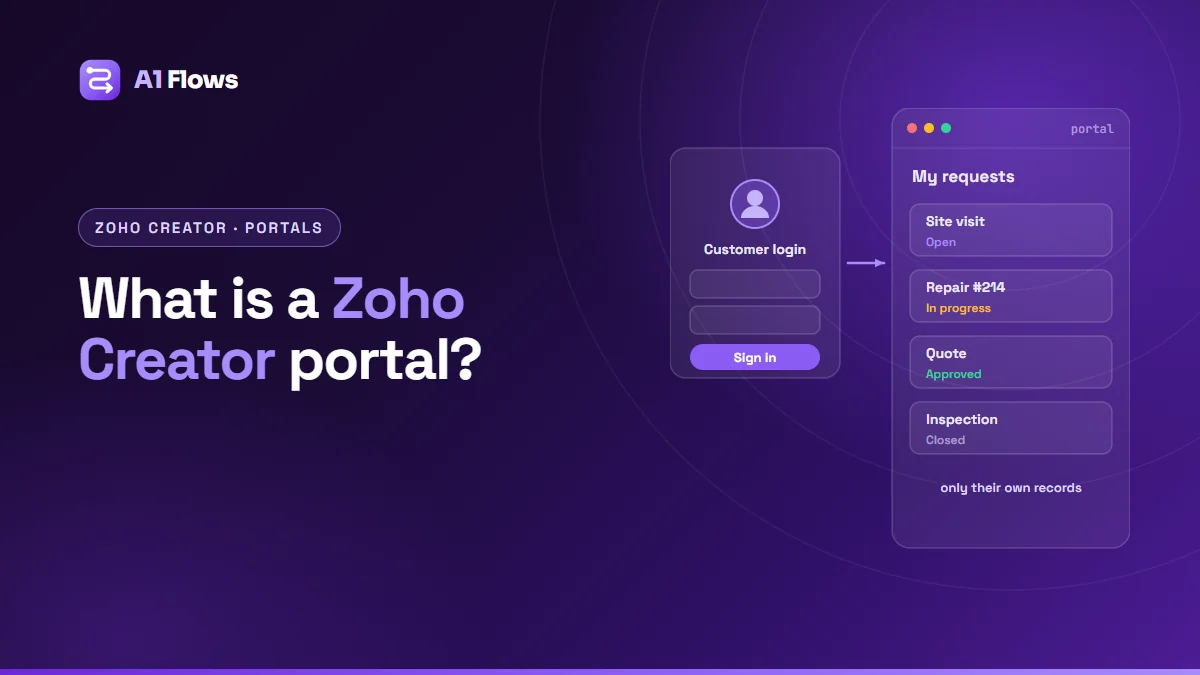
A Zoho Creator portal is a separate, branded login that gives people outside your organisation – customers, suppliers, partners, applicants – access to selected parts of a Zoho Creator application. Portal users see only the forms, reports and pages you allow, and typically only their own records, without ever becoming users of your internal Zoho apps.
This guide explains what a Creator portal is, what businesses use one for, how it works, and how to create one step by step in Creator 6.
In this guide
- What is a Zoho Creator portal?
- What portals are used for
- How a Creator portal works
- How to create a portal, step by step
- Creator portal or CRM portal?
- Best practices and common mistakes
- Frequently asked questions
What is a Zoho Creator portal?
Every Creator app has internal users – your team. A portal adds a second kind of user: the portal user, who signs in at the portal’s own address and works with the parts of the app you have opened to them. Through a portal, an outside user can typically:
- Submit forms and requests.
- See their own records and track their status.
- Upload files and documents.
- Take part in workflows, such as approving a quote or responding to a query.
Because the portal runs on your own app, it can follow whatever process you build – which is what separates it from a generic customer login.
What portals are used for
Customer portals
Customers submit service requests, track orders or projects, and download their documents. A service company might let clients log issues with photos and watch each one move from “open” to “resolved”, instead of emailing for updates.
Supplier and partner portals
Suppliers see purchase orders, submit invoices or quotes, and keep their own details current. A submitted invoice can start an approval workflow in the same app.
Applicant and member portals
Applicants submit applications and documents and follow their progress; members manage their details and bookings. Anywhere a process involves people outside your team, a portal can replace the email chain.
How a Creator portal works
- Portal users and permissions. Portal users get permission sets that decide which forms, reports and pages they can use. According to Zoho, the default portal permission set is called “Customer”, and portal users cannot trigger API calls.
- Access type. A portal can be public, private or restricted, which decides who can sign up and how users are admitted.
- Address. The portal runs on a Zoho default domain or your own custom domain.
- Security. Portal settings include multi-factor authentication and an idle session timeout.
- Plans and environments. Portals are available on paid plans, and only for apps in the Production environment.
- Users. The number of portal users depends on your portal add-on, up to 500,000, according to Zoho.
How to create a portal, step by step
These steps follow Zoho’s Creator 6 portal guide. Accounts still on the earlier Creator 5 interface have different menus.
Step 1: Build the app and publish it to Production
Create the forms, reports and workflows the portal will use, and make sure the app is in Production – portals do not run on apps in Development or Stage. If you are starting from scratch, see how to build a custom app in Zoho Creator.
Step 2: Create the portal
Under Deploy, open Portals and click Create New. Start from scratch or from a template, and choose the application the portal is for.
Step 3: Configure the settings
In the portal’s Settings, choose the access type (public, private or restricted), the portal URL (Zoho’s default domain, or a custom domain that you then verify), and security options such as multi-factor authentication and the idle session timeout.
Step 4: Set what portal users can do
Adjust the “Customer” permission set – or create others for different kinds of portal user – so each can reach only the forms, reports and pages they need, with only the actions they need. Then make sure each user sees only their own records. A common pattern is to store the user’s email on each record and filter the portal’s reports by the logged-in user.
Step 5: Design the portal’s pages
Keep navigation short and task-focused: “New request”, “My requests”, “My documents”. A portal user should never need training. Add your logo and colours so it looks like part of your business.
Step 6: Add users and test
Invite a test user, sign in as them, and try to see something you should not: another customer’s record, an internal report, an admin action. Only after that test fails should real users be invited.
Creator portal or CRM portal?
Zoho CRM has its own portals, which open selected CRM records – quotes, invoices, cases – to outside users with configuration rather than an app build. Choose a CRM portal when the data already lives in CRM and users mainly view and update it; choose a Creator portal when you need a custom process, custom screens or data that does not belong in CRM. Our comparison of Zoho CRM portals and Creator portals goes through the trade-offs.
Best practices and common mistakes
- Restrict records, not just screens. Hiding a report is not the same as filtering it; test with a real portal user.
- Keep it simple. Fewer, clearer pages beat a copy of your internal app.
- Notify by email when something changes, so users do not have to keep checking.
- Use a custom domain so the portal looks like part of your business.
- Turn on multi-factor authentication where the data is sensitive.
- Write short help text on forms rather than a separate user guide nobody reads.
Frequently asked questions
What is a Zoho Creator portal?
A separate login that gives external users – customers, suppliers, partners or applicants – controlled access to parts of a Zoho Creator application.
Is the Creator portal available on the free plan?
No. Zoho documents portals as available on paid plans, and only for apps in the Production environment.
Can I use my own domain for a Creator portal?
Yes. In the portal’s settings you can choose a custom domain instead of Zoho’s default and verify it.
Can portal users see each other’s data?
Only if your permissions and report filters allow it. Set them so each user sees only their own records, and test it with a real portal account.
How many portal users can a Creator portal have?
It depends on your portal add-on; Zoho documents up to 500,000 portal users, with larger numbers through Zoho support.
Can portal users access the Creator API?
No. Zoho’s documentation states that portal users cannot trigger API calls.
Can a Creator portal work with Zoho CRM?
Yes. The Creator app behind it can read and write CRM records with Deluge, and portal settings include auto-approval for users who already exist as CRM contacts.
Next steps
Decide who the portal is for and the two or three things they most need to do in it, then build only that first. If you would like a portal designed and built for you, see our Zoho Creator development service.