 Zoho CRM Implementation
 Zoho One Consulting
 Zoho Books Setup
 Zoho Analytics & BI
 Data Migration Services
 Zoho Desk Automation
 Zoho Creator Development
 Zoho Automation Services
 Zoho Widget Development
 Zoho Extension Development
 Deluge Development
 Zoho Integration Services
 Zoho API Integration
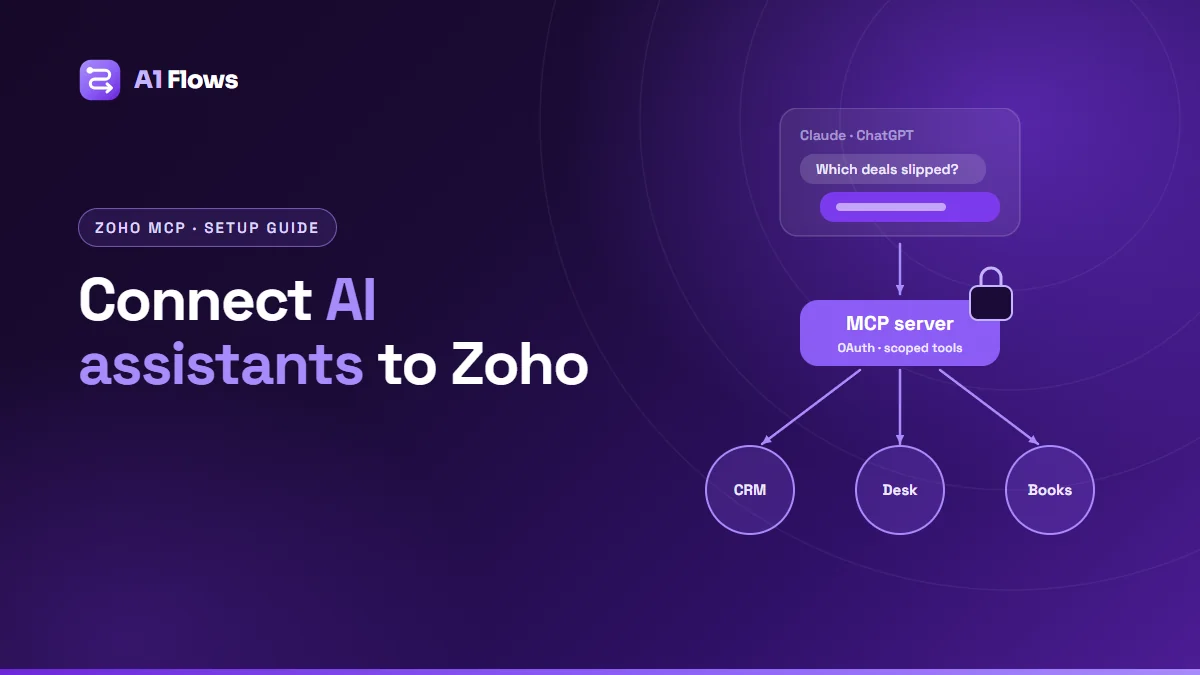
To connect an AI assistant to Zoho, you create an MCP server in Zoho MCP, choose which tools the assistant may use, copy the server URL, and add it to your AI client as a custom connector. The first time a tool runs, you sign in to Zoho and approve access. From then on, the assistant can read and act on your Zoho data – within the tools you enabled and the permissions of your Zoho user.
This guide walks through the setup for Claude and ChatGPT, covers Zoho CRM’s pre-built MCP servers for coding tools such as Cursor and VS Code, and explains the security settings you should decide on before anyone starts asking questions of your live data.
In this guide
- What is a Zoho MCP connector?
- What you can use it for
- Before you start
- Setting up Zoho MCP, step by step
- Zoho CRM’s pre-built MCP servers
- Security best practices
- Common problems and fixes
- Frequently asked questions
What is a Zoho MCP connector?
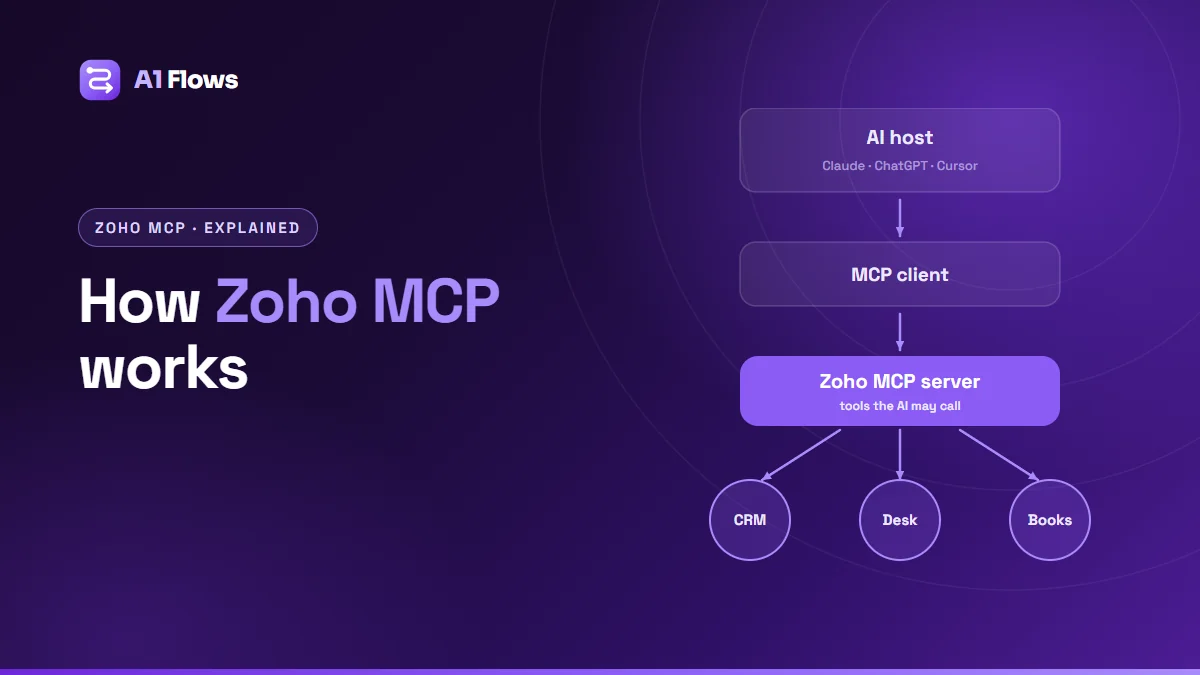
MCP – the Model Context Protocol – is an open standard for describing tools to an AI model. An MCP server publishes a list of actions, such as “search contacts” or “create an expense”, and any MCP-compatible client can call them. Claude, ChatGPT, Cursor, VS Code and many other tools are clients.
Zoho MCP is Zoho’s product for creating those servers for Zoho apps. Rather than writing a server yourself, you configure one in Zoho’s interface: pick the apps, pick the tools, and Zoho hosts it. Zoho describes the tools as built on its existing APIs, with access controlled by OAuth and limited to what the signed-in user is allowed to do.
A “Zoho MCP connector” is simply that server added to an AI client – in Claude it appears as a custom connector, in ChatGPT as an app. If you want the bigger picture of what MCP changes about AI automation, our overview of how Zoho MCP works covers it.
What you can use it for
- Asking questions of live data. “Which deals over $10,000 have had no activity this month?” answered from the actual pipeline rather than an export.
- Drafting with real context. A reply to a support ticket, written after reading the ticket and the customer’s history.
- Routine actions. Creating a task, updating a status, logging an expense – described in a sentence instead of clicked through.
- Cross-app checks. Comparing records in two apps and listing the mismatches for a person to review.
- Developer work. In Cursor or VS Code, inspecting module structure or field schemas while building against Zoho.
Before you start
- A Zoho account with access to the apps and data you want to connect. The assistant can never do more than your Zoho user can.
- An AI client that supports remote MCP servers. For Claude, Zoho’s guide describes adding the connector as a Claude Organization Admin on a Team plan or higher, which makes it available to the whole organisation; check Anthropic’s current help pages for what your own plan allows. For ChatGPT, Zoho’s guide states a Plus, Pro or Team plan is required.
- A decision about scope. Decide which tools the assistant should have before you create the server, and start with read-only ones.
Setting up Zoho MCP, step by step
The steps below follow Zoho’s own setup guide, published with its Zoho Expense MCP documentation. The same flow applies to the other Zoho apps. Interface labels may change as Zoho updates the product.
Step 1: Create an MCP server
Sign in to Zoho MCP with your Zoho account and create a new MCP server, or select an existing one.
Step 2: Choose the tools
Open Tools and enable only the actions the assistant needs. The assistant does not get access to everything by default – each tool is one permitted action mapped to a Zoho API call. Start with read-only tools such as listing or getting records, and add write tools later, one at a time.
Step 3: Copy the server URL
Go to Connect in the left sidebar and copy the server URL. It contains an API key, so treat it like a password: anyone with the URL can use your server. If it is ever exposed, use Regenerate API Key – this invalidates the old URL and disconnects every client using it, so you will need to update each one.
Step 4a: Connect Claude
- Open Claude’s Settings and go to Connectors.
- Click Add custom connector.
- Enter a name – for example “Zoho CRM” – paste the server URL and click Save.
- Find the connector and click Connect.
- Approve the two authorisation screens: first Zoho MCP, then Zoho’s own OAuth screen.
To use it, open a new chat, click the + icon, choose Connectors and enable it.
Step 4b: Connect ChatGPT
- In ChatGPT, open Settings and go to Apps.
- Under Advanced settings, turn on Developer mode.
- Click Create app, enter a name, paste the URL into MCP Server URL, and set Authentication to OAuth.
- Tick I trust this application and click Create.
- Approve the Zoho MCP and Zoho OAuth screens.
Step 5: Test with a read-only question
Ask something you can verify by looking in Zoho yourself – “how many open deals do I own?” – and compare. It confirms the connection works and shows you how the assistant phrases its tool calls.
Step 6: Review the logs
Zoho MCP keeps a log of tool calls that you can filter by date, status, tool and user. Check it after your first few sessions so you know what the assistant actually did, not just what it said.
Zoho CRM’s pre-built MCP servers
For Zoho CRM, Zoho also publishes pre-built MCP servers aimed at developer tools, with setup guides for Cursor, Claude Desktop, VS Code and Windsurf. There is nothing to host, and the first tool call opens a browser window for Zoho sign-in. They come in four groups:
- Data Insights – read-only: COQL queries, filtering, sorting, grouping, module lists and field schemas.
- Data Operations – create, read, update and delete records, including bulk and related-record operations.
- Module Customization – view and change modules, fields and page layouts.
- Workflow & Process Automation – create, update and reorder workflow rules and their actions.
Two details worth knowing: every action is scoped to your CRM user’s permissions, and MCP calls consume API credits in the same way as standard API calls. A busy assistant counts against the same daily limits as your integrations.
Security best practices
- Start read-only. You learn how people use the assistant before it can change anything.
- Add write tools one at a time. Each new tool is a new thing the assistant can do; know why you are adding it.
- Use a dedicated Zoho user where it makes sense. A user with deliberately limited permissions bounds the worst case by something you can inspect in Zoho’s admin.
- Keep humans on money and customers. Approvals, payments and anything sent to a customer should be reviewed by a person before it goes.
- Treat the URL as a secret. Do not paste it into shared documents or tickets; regenerate it if it leaks.
- Test in a sandbox first. Zoho’s own guidance recommends it, and AI models can misread a request.
- Read the logs. An AI action should be as reviewable as a staff member’s.
Common problems and fixes
A tool I enabled does not appear
After adding tools in Zoho MCP, existing clients need to pick up the change. Zoho’s guide says Claude users should disconnect and reconnect the connector, and ChatGPT users should refresh the app – then approve permissions again.
The assistant is looking at the wrong organisation
Disconnect the server and authenticate again with the account for the organisation you want.
“Permission denied” errors
The tool is working; your Zoho user is not allowed to do that action. Adjust the user’s role or profile in Zoho, not the MCP settings.
Calls start failing during a busy day
You may be hitting API limits shared with your other integrations. Check API usage in the Zoho app’s developer settings.
Who should set it up
Zoho MCP is approachable enough for an admin to connect a read-only server in an afternoon. It is worth bringing in help when you need write access with approval steps, tools over your own processes – a Creator app, a custom module, a Deluge function that already encodes your rules – or connections to Zoho apps and actions that the standard tools do not cover.
Frequently asked questions
Is Zoho MCP free?
Zoho offers a free sign-up for Zoho MCP. Calls still run through the Zoho APIs and count against your apps’ API limits, so check your plan if you expect heavy use.
Which Zoho apps work with Zoho MCP?
Zoho lists many of its apps, including CRM, Desk, Books, Projects, WorkDrive, Cliq, Mail, Calendar and Expense, plus a range of third-party services. The Zoho MCP site has the current list.
Does the AI provider see all my Zoho data?
No. The assistant only receives what a tool returns for a specific request. Which tools exist – and therefore what can ever be read – is decided when you configure the server.
Can the assistant delete records?
Only if you enable a tool that deletes, and only where your Zoho user has permission to delete. Leaving destructive tools off is the simplest protection.
Do I need to be technical to set this up?
Not for the basic setup above – it is configuration, not code. Building custom tools over your own functions or processes does need development.
Can I use Zoho MCP with Cursor or VS Code?
Yes. Zoho MCP works with MCP-compatible clients, and Zoho CRM’s pre-built servers include setup guides for Cursor, VS Code, Claude Desktop and Windsurf.
What about Zoho Expense?
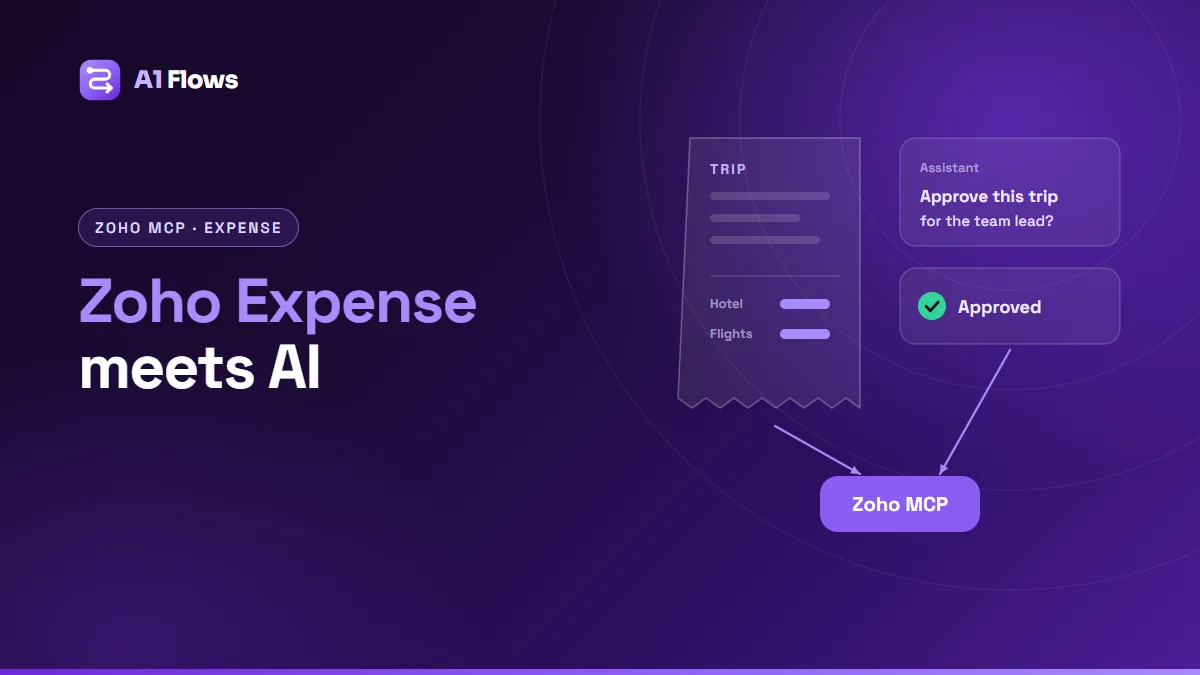
Zoho Expense has its own MCP tools for expenses, reports and trips. Our guide to Zoho Expense MCP covers it in detail.
Where to go from here
Connect a read-only server first, use it for a week, read the logs, and only then decide which actions are worth giving the assistant. That order keeps the experiment safe and tells you where it is actually useful.
If you need custom tools, approval steps or a server over your own processes, our Zoho MCP integration service covers the design and the guardrails.