 Zoho CRM Implementation
 Zoho One Consulting
 Zoho Books Setup
 Zoho Analytics & BI
 Data Migration Services
 Zoho Desk Automation
 Zoho Creator Development
 Zoho Automation Services
 Zoho Widget Development
 Zoho Extension Development
 Deluge Development
 Zoho Integration Services
 Zoho API Integration
To build a Zoho CRM widget, you install the Zoho Extension Toolkit (ZET), create a CRM project with zet init, write a small web app that talks to CRM through Zoho’s JavaScript SDK, test it locally with zet run, package it with zet pack, and upload the zip in CRM’s developer settings. Then you place it where users will see it – on a record, behind a button, or as its own tab.
This tutorial walks through each step, shows a minimal working widget that reads the current record, and covers the mistakes that commonly cost a first-time widget developer an afternoon.
In this guide
- What is a Zoho CRM widget?
- When a widget is the right tool
- What you need before you start
- Building a widget, step by step
- Where to place the widget
- Common mistakes
- Frequently asked questions
What is a Zoho CRM widget?
A widget is a small web application – HTML, CSS and JavaScript – that runs inside Zoho CRM. It can read and write CRM data through Zoho’s JavaScript SDK, call external services through Zoho’s connectors, and show any interface you can build for the browser. To the user it looks like part of CRM: a panel on a record, a screen behind a button, or a tab in the navigation.
Widgets are how you add interfaces Zoho does not provide: live data from another system shown on a CRM record, a guided form that creates several related records at once, or a custom view for a decision Zoho’s standard layouts cannot support.
When a widget is the right tool
A widget is more work than a custom field or a workflow rule, so use it when those will not do:
- The data lives somewhere else – an ERP, a phone system, your own product – and users keep switching tabs to look it up.
- Entering data takes too many steps across several modules.
- The decision needs a view Zoho cannot draw – comparing duplicates side by side, choosing time slots, picking items with live pricing.
- An action belongs to an external system – placing a call, checking credit, booking a resource – and should happen from inside the record.
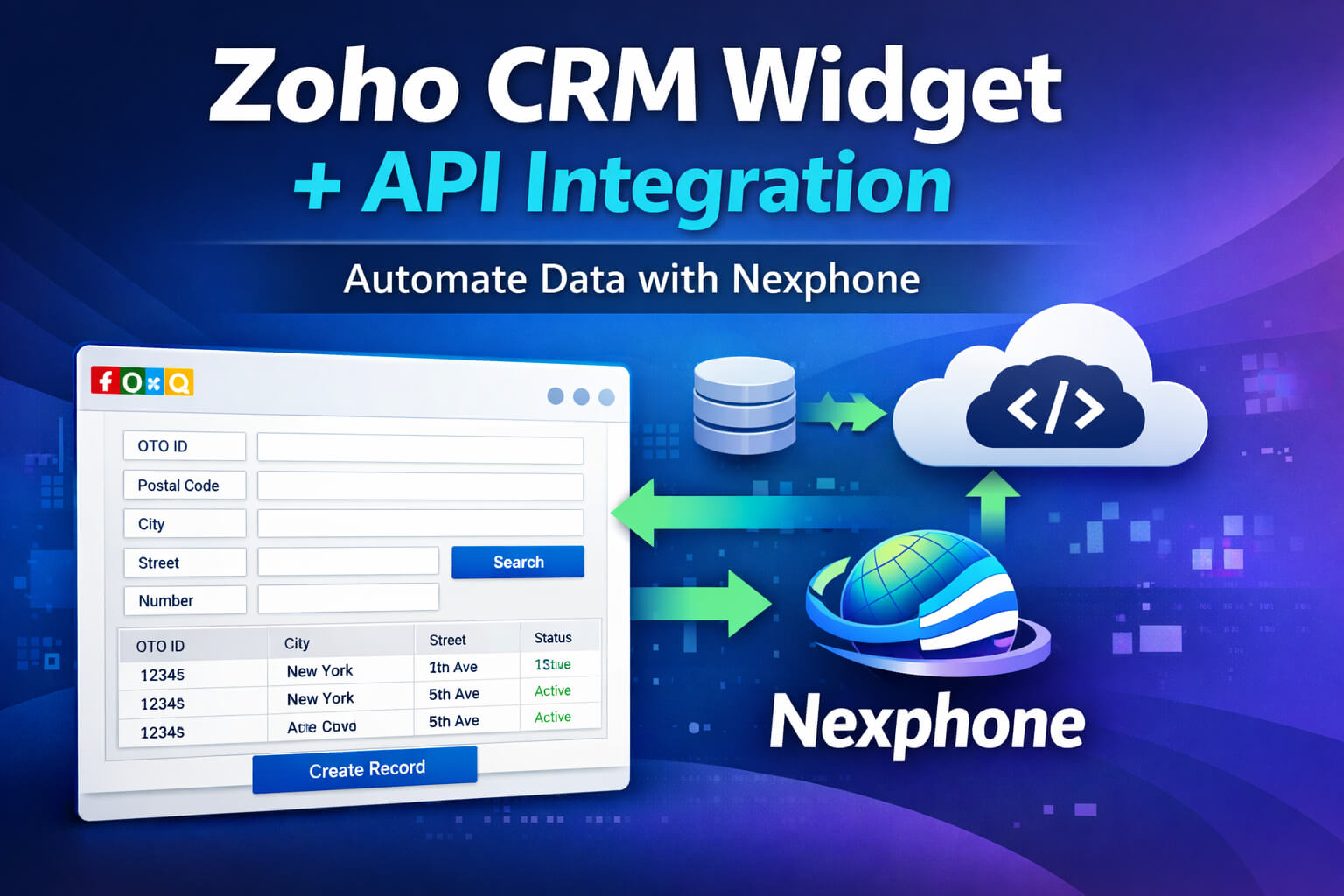
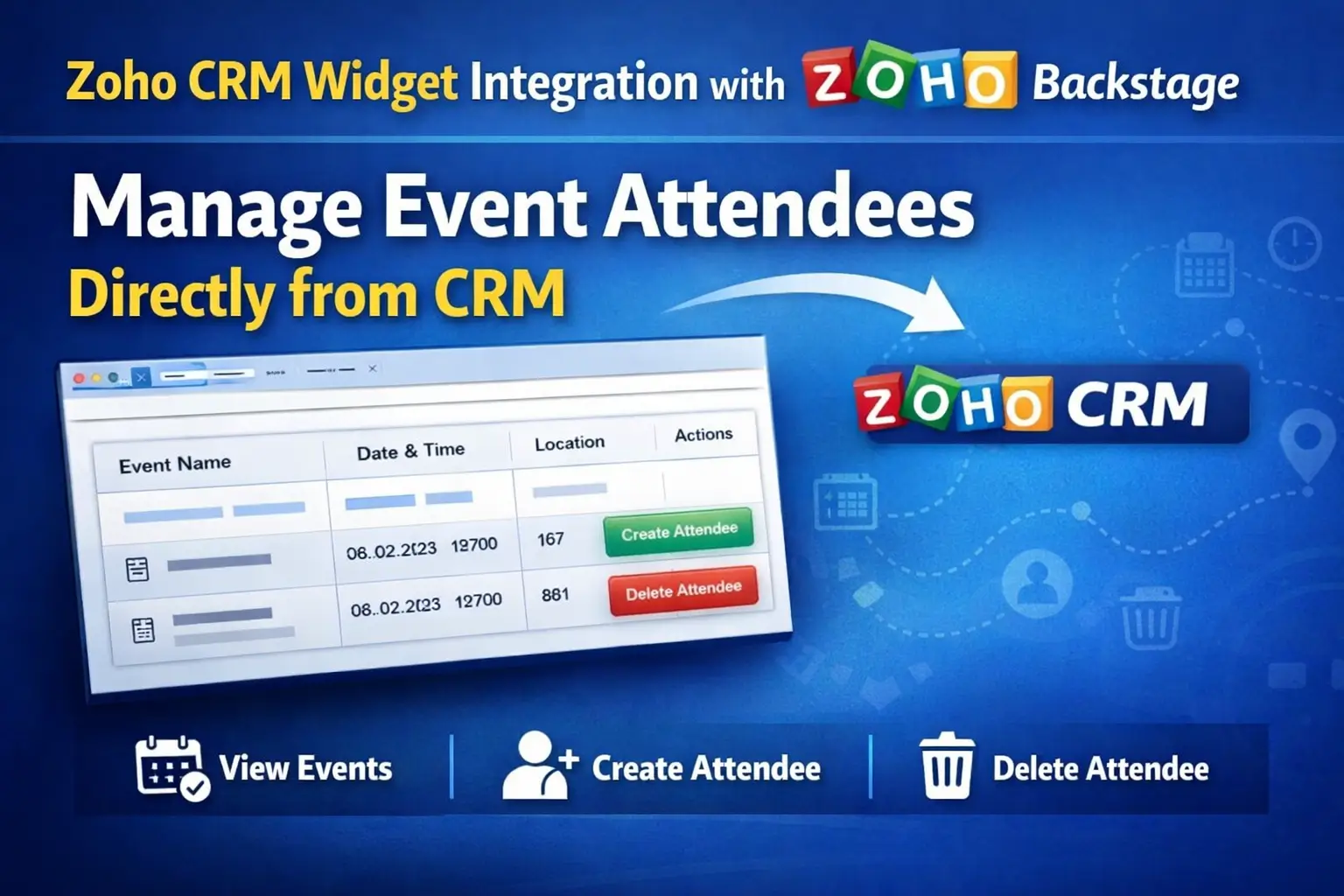
Our case studies show real examples: a widget integrating NexPhone calls into CRM and a widget for managing Zoho Backstage attendees.
What you need before you start
- Node.js and npm installed on your machine.
- A Zoho CRM account with admin or developer access, on an edition that supports widgets. Placement options vary by edition, so check before designing.
- A sandbox, if your edition has one, for testing without touching live data.
- Basic HTML and JavaScript. Any framework is optional; plain JavaScript is enough for most widgets.
Building a widget, step by step
Step 1: Install the Zoho Extension Toolkit
npm install -g zoho-extension-toolkitThis gives you the zet command. Zoho’s ZET documentation covers installation in detail.
Step 2: Create a project
zet initChoose Zoho CRM from the list of services and give the project a name. ZET creates a project folder with a template and installs its dependencies. Your widget’s files live in the app folder, starting with widget.html.
Step 3: Write the widget
A minimal widget that shows the name of the record it is opened on. Include Zoho’s JavaScript SDK in widget.html (the ZET template includes the script tag), then:
<div id="output">Loading...</div>

<script>
  // Fires when CRM loads the widget, with the context it was opened in
  ZOHO.embeddedApp.on("PageLoad", function (data) {
    // On a record, data.Entity is the module and data.EntityId the record
    ZOHO.CRM.API.getRecord({ Entity: data.Entity, RecordID: data.EntityId })
      .then(function (response) {
        var record = response.data[0];
        document.getElementById("output").textContent =
          record.Deal_Name || record.Full_Name || record.Account_Name;
      });
  });

  // Must be called once, after the event handlers are registered
  ZOHO.embeddedApp.init();
</script>
The context in data depends on where the widget is placed – a button on a list view, for example, may pass several selected record IDs. Log data to the browser console the first time you place a widget somewhere new.
Step 4: Run it locally
zet runThis starts a local development server on port 5000. Open the local URL it shows in your browser once; if the browser warns about the development certificate, allow it, or CRM will not be able to load the widget from your machine while you test.
Step 5: Validate
zet validateChecks the project against the rules in its manifest. Fix anything it reports before packaging.
Step 6: Package
zet packCreates a zip of the application in the project’s dist folder.
Step 7: Upload to Zoho CRM
- In Zoho CRM, go to the Widgets page in the developer settings (under Setup > Developer Hub; older accounts label it Developer Space).
- Create a widget, choose Zoho as the hosting type, and upload the zip.
- Set the index page –
/widget.htmlfor the default template.
Where to place the widget
- Related list – a panel on the record page, the most common placement because it is where users already are.
- Custom button – opens the widget from a record or list view for a specific task.
- Blueprint transition – collects information at a particular step of a process.
- Web tab – a full page in the CRM navigation for tools that work across many records.
Each placement is added from the relevant module’s customisation settings once the widget is uploaded. Available locations depend on your CRM edition.
Calling external services safely
Never put API keys or passwords in widget code – anyone who can open the widget can read its JavaScript. Instead, call external services through a Zoho connection (which handles OAuth on Zoho’s side), through a Deluge function the widget invokes, or through a small backend you host that holds the credentials and handles rate limits.
Common mistakes
- Calling
init()before registering handlers, so thePageLoadevent is missed and the widget sits on “Loading…”. - Assuming the context shape.
EntityIdmay be a single ID or a list depending on placement. Log it first. - Using field labels instead of API names when reading the record.
- Secrets in client code. Use connections or a backend.
- Depending on CRM’s page structure. Use the SDK and APIs, not the surrounding page, or a Zoho UI update will break the widget.
- No error state. When an external service is slow or down, show a clear message rather than a blank panel.
Frequently asked questions
Do I need to host a Zoho CRM widget myself?
No. With Zoho as the hosting type, you upload the packaged zip and Zoho serves it. External hosting is also possible if you need it.
What languages can I build a widget in?
Any web technology that runs in the browser – plain HTML, CSS and JavaScript, or a framework such as React or Vue built to static files.
Can a widget update CRM records?
Yes. The JavaScript SDK supports creating, updating and deleting records, within the permissions of the user who is using the widget.
Can a widget call a third-party API?
Yes, through a Zoho connection, a Deluge function, or your own backend – never with credentials embedded in the widget itself.
What is the difference between a widget and an extension?
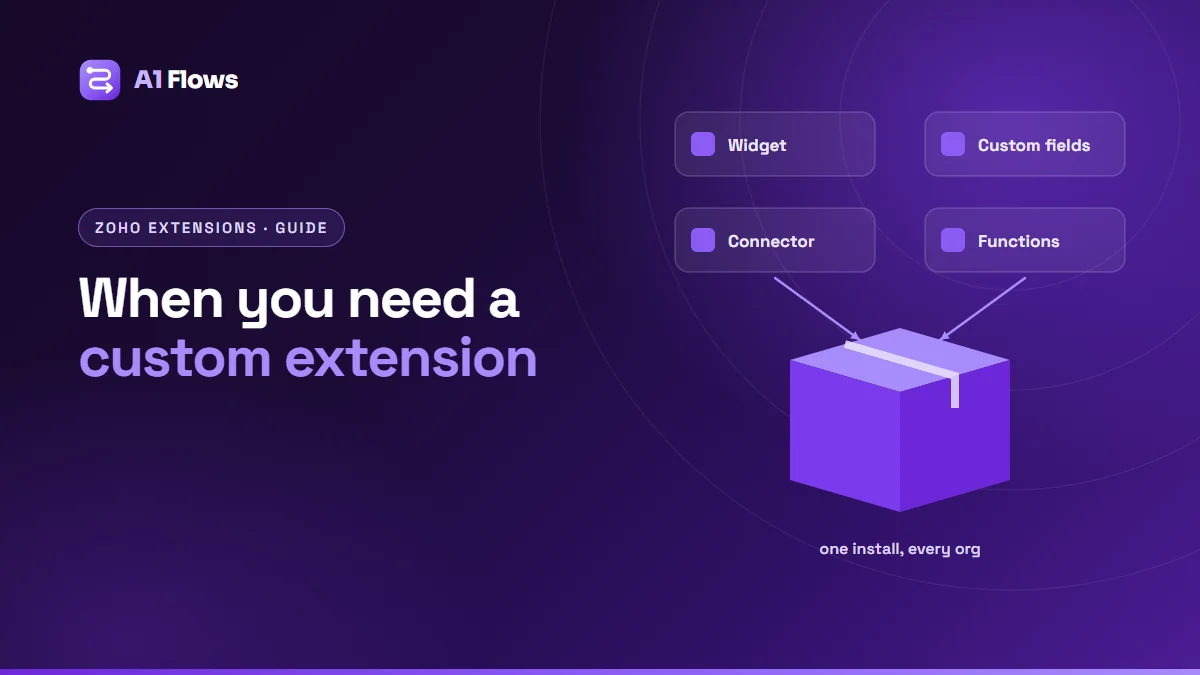
A widget is one embedded interface. An extension is a package that can bundle widgets with custom fields, modules, workflows and connectors, installable in one step. See our guide on when a business needs a custom Zoho extension.
Will my widget survive Zoho updates?
If it uses the documented SDK and APIs, generally yes. Widgets that rely on the surrounding page’s structure are the ones that break.
How long does it take to build a widget?
A read-only widget showing data from one source can be quick to build. One that edits data across modules and external systems, with a backend, takes considerably longer – and a design review with the people who will use it is worth more than any amount of code.
Next steps
Start with the read-only example above on a sandbox record, confirm the context your placement passes, then add the real data source. Getting one simple widget working end to end teaches you most of what you need for the complex one.
If you would rather have a widget designed and built for you, see our Zoho CRM widget development service.